Connect ChatGPT
Connect your AgentWeave account to ChatGPT and send work to ChatGPT from your AgentWeave workspace. You can connect a ChatGPT Work chat or your dot, and each connection appears in AgentWeave as an agent.
- This guide is for AgentWeave at www.agentweave.ai. If your AgentWeave does not show Create → Connect ChatGPT, the feature is not available there.
- You need a ChatGPT account that can add custom MCP servers, plus the AgentWeave account you want to connect.
- In AgentWeave, click Create → Connect ChatGPT to open the Connect ChatGPT page. Keep it open: you'll switch between ChatGPT and that page during the four steps below.
1. Add AgentWeave as a custom MCP server in ChatGPT
-
Open ChatGPT plugins.
-
Select Add in the top-right corner, then choose Add custom MCP server.
-
In the setup dialog, enter the following details:
Field What to enter Name AgentWeave (or any name you prefer) Icon Optional Description Optional Connection Select Server URL Server URL Copy it from the Connect ChatGPT page. On www.agentweave.ai it is https://rest.agentweave.ai/api/v1/chat/native/mcpAuthentication Select OAuth Advanced OAuth settings Leave the default settings unchanged -
Select the I understand and want to continue checkbox.
-
Select Create as a plugin to finish adding the server.
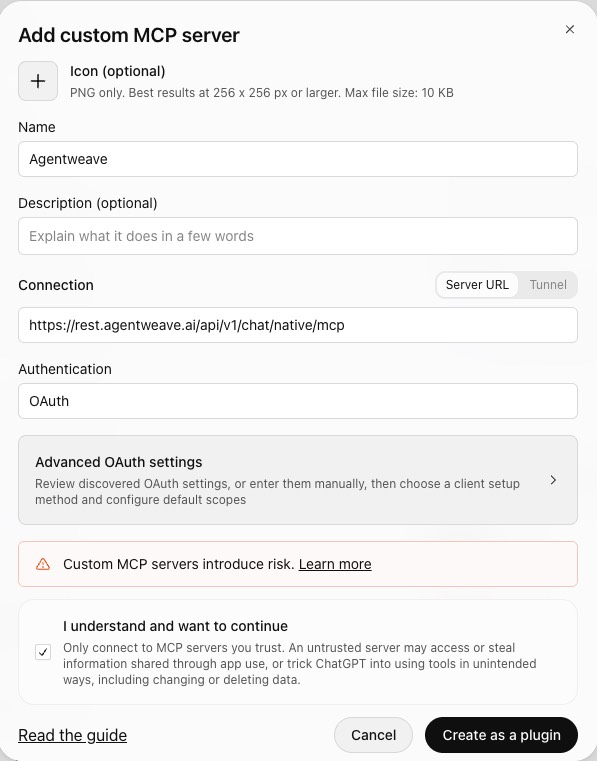
Your ChatGPT account must have permission to add custom MCP servers. If you don't see this option, check your ChatGPT account or workspace access.
2. Sign in to AgentWeave and authorize access
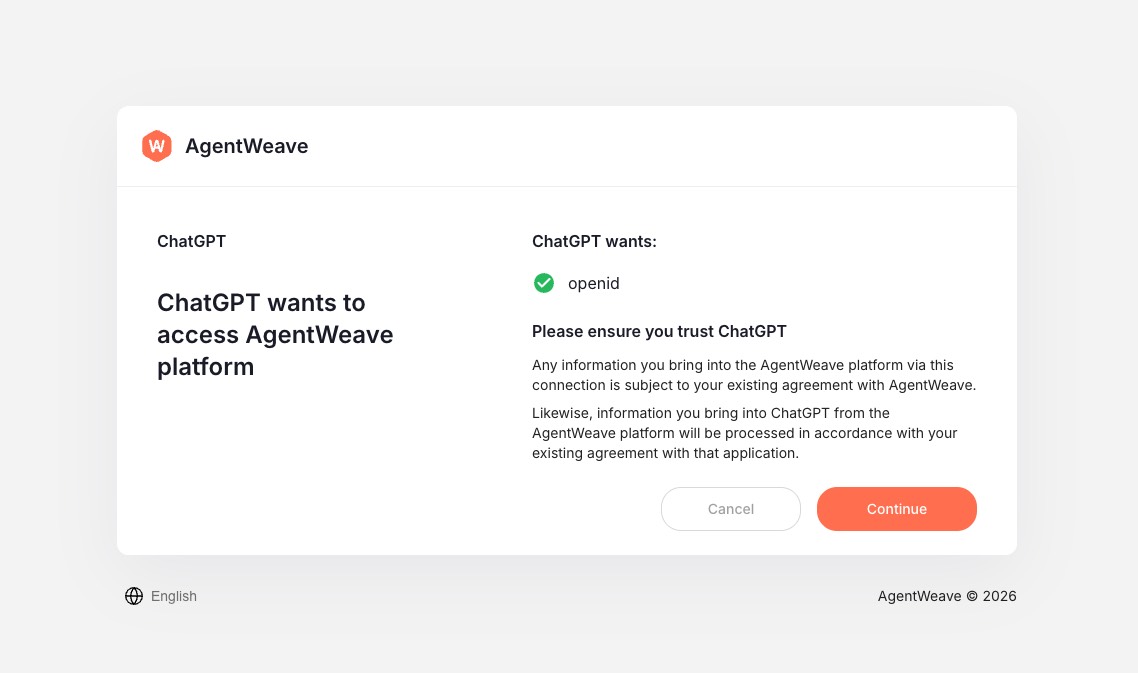
After you add the server, ChatGPT opens an AgentWeave sign-in page.
- Sign in with the AgentWeave account you want to connect.
- Review the authorization request and select Continue to allow ChatGPT to access your AgentWeave account.
3. Connect a Work chat or dot to AgentWeave
On the Connect ChatGPT page, first choose what you are connecting:
- Work chat: a chat in ChatGPT's Work mode. You can create a separate connection for each Work chat.
- dot: ChatGPT's always-on personal agent. Each ChatGPT account has only one dot. Access requires a Pro plan (outside the EEA, Switzerland, and the UK), Business Premium, or Enterprise with the beta enabled by your admin.
Choose a connection name
Enter a name in the Connection name field. The name identifies this connection in AgentWeave.
A name belongs to one connection at a time, across all your ChatGPT connections, Work chats and dot alike. Names are not case-sensitive: "Ops" and "ops" count as the same name. Leading and trailing spaces are ignored, full-width and half-width characters count as the same, and a name can be at most 64 characters.
If a connection already uses the name, what happens depends on that connection:
- It is still connected: creation fails. Choose another name.
- It was stopped or has expired, and is the same kind (Work chat or dot): no new agent is created. The new connection takes over that agent in My Agents, together with its conversation, and the tasks you send it go to the new connection from then on. To start with a new, empty agent instead, choose another name, or delete the old agent first.
- It was stopped or has expired, and is the other kind: creation fails. To reuse the name, delete that agent in AgentWeave first.
Send the connection sentence
- After entering a connection name, copy the connection sentence generated on the page.
- For a Work chat, open a new chat in ChatGPT and switch it to Work mode. For a dot, open your dot.
- Paste the copied sentence into the Work chat, or send it to your dot.
If ChatGPT replies that no subscription tool is available, or only responds with a ping, the chat is probably not in Work mode. Switch to Work mode and send the sentence again.
One connection per Work chat or dot
- Work chat: each Work chat should have one AgentWeave connection. Sending the connection sentence again in the same chat with a different name only adds a duplicate connection to the same chat. To connect a different agent or set up a separate workflow, open a new Work chat, complete its setup, and connect it using a different name.
- dot: connect your dot only once. Sending the same connection name again has no effect, and using a different name only creates a duplicate connection.
4. Open your connected agent in My Agents
Return to AgentWeave and open My Agents. An agent with your connection name and the ChatGPT avatar appears in the list.
- Open the new agent.
- Send it a message in the chat.
- AgentWeave sends your message to ChatGPT as an assignment, and ChatGPT's answer is returned to the same AgentWeave chat.
You can now use the connected agent in AgentWeave to send tasks to the ChatGPT Work chat or dot behind this connection.
Manage or reconnect a connection
If you delete the connected agent in AgentWeave
Deleting the agent frees its connection name. Connecting again creates a new agent with an empty conversation; the deleted agent's conversation does not come back.
-
A Work connection, from a new Work chat: send the connection sentence there. Nothing else is needed.
-
A Work connection from the same Work chat, or a dot connection: first send this in that chat or in your dot:
Stop monitoring AgentWeaveThen send the connection sentence again. Until you stop it, that chat or dot still holds the deleted connection and cannot connect again.
Stopping monitoring in a ChatGPT Work chat or dot stops every AgentWeave monitor in that chat, not just one named connection.
If you deleted the ChatGPT chat without stopping monitoring
AgentWeave does not notice the deletion by itself: the connection stays active until its lease expires (up to 7 days), and the name cannot be reused until then. To reconnect right away:
- In AgentWeave, send any message to the connected agent.
- AgentWeave detects that the ChatGPT chat is no longer available, disconnects it, and replies with the sentence to reconnect.
- Send that sentence in a new ChatGPT chat of the same kind: a new Work chat for a Work connection, your dot for a dot connection. The connection keeps its name, and your existing agent in AgentWeave is reused.
A disconnected name can only be taken over by a connection of the same kind. To reuse a Work connection's name for your dot, or a dot connection's name for a Work chat, delete that agent in AgentWeave first. Sending it a message or waiting for the lease to expire does not free the name for the other kind.
Quick troubleshooting
| What you see | What to do |
|---|---|
| ChatGPT says the connection could not be created. | The connection name may already be taken. Choose a unique name and send the generated sentence again. |
| ChatGPT says no subscription tool is available, or only responds with a ping. | Confirm that the chat is in Work mode, then resend the connection sentence. |
| The connection sentence does not reconnect after deleting the AgentWeave agent. | In the same Work chat or dot, send "Stop monitoring AgentWeave" first, then send the connection sentence again; this creates a new agent. For a Work connection, you can instead send the sentence in a new Work chat. |
| The connection name is still unavailable after deleting the ChatGPT chat. | Send any message to the corresponding AgentWeave agent to trigger a disconnect, then send the connection sentence again from a chat of the same kind. Without that message, the name is only taken over once the lease expires (up to 7 days). To use the name for the other kind (Work chat vs dot), delete that agent in AgentWeave first. |
| The agent replies "The connection to … has expired." | To renew, send the sentence included in that reply where the connection lives: the original Work chat for a Work connection, your dot for a dot connection. If you send a Work connection's sentence in a different Work chat, the connection moves there: tasks go to the new chat, the original chat stops receiving them, and the instructions and files set up in the original chat do not come along. |